Your Faces
Your HPVM or HPVM Pro can show your voltage many ways. Each way is a face. This page shows every face, so you can pick the one you like.
To put a face on your meter:
- Open the LF Audio app.
- On the Devices tab, tap your meter.
- Tap the gear at the top right, then tap SETTINGS.
- Tap All faces.
- Tap a face. Your meter shows it right away.
To have your meter step through a few faces by itself, see Rotate faces.
The pictures below are from the HPVM Pro, which reads four channels. The HPVM shows the same faces on its square screen, with its two channels.
Faces 11 to 18 are new in firmware 3.3, and Competition (face 19) needs firmware 3.3.1 or newer. They are on the HPVM Pro and the HPVM with v1.4 hardware. An HPVM with older hardware gets them in a later update. The HPVM-24 and the HPVM-440 keep their current faces. See Firmware Updates.
Classic Faces
Faces 1 to 10. They have a new, sharper look in firmware 3.3.
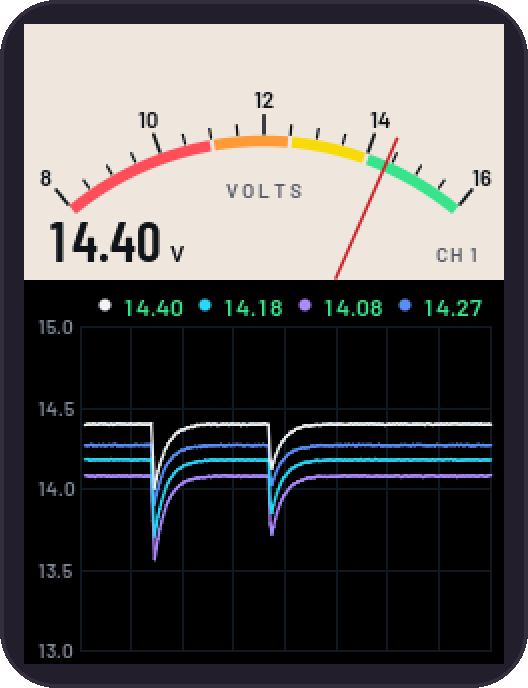
1. Meter + graph
A dial for your main channel, over a graph of every channel.
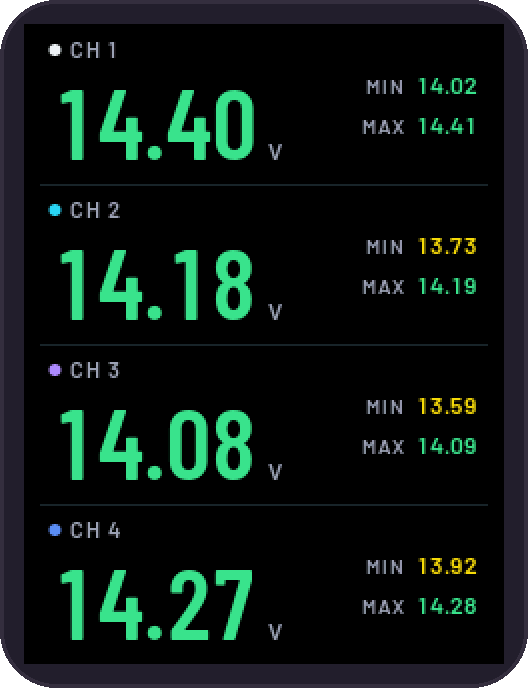
2. Large voltage
Big numbers for every channel, each with its lowest and highest.
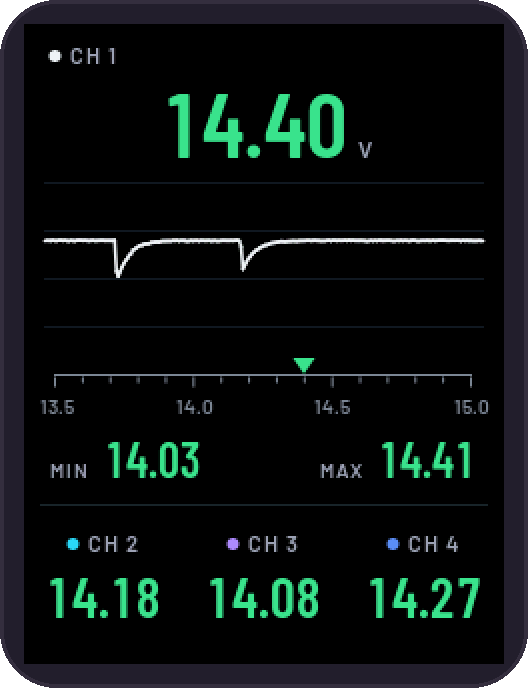
3. Graph, bottom scale
Your main channel as a graph, with its scale along the bottom. The graph sizes itself to your voltage.
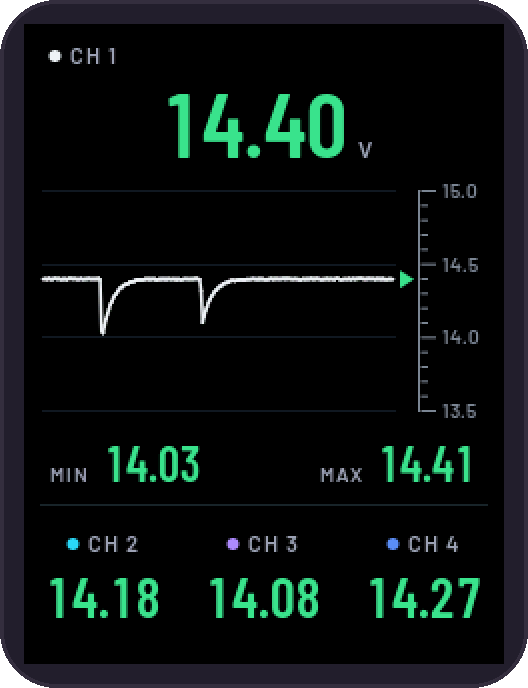
4. Graph, side scale
Your main channel as a graph, with its scale up the side. The graph sizes itself to your voltage.
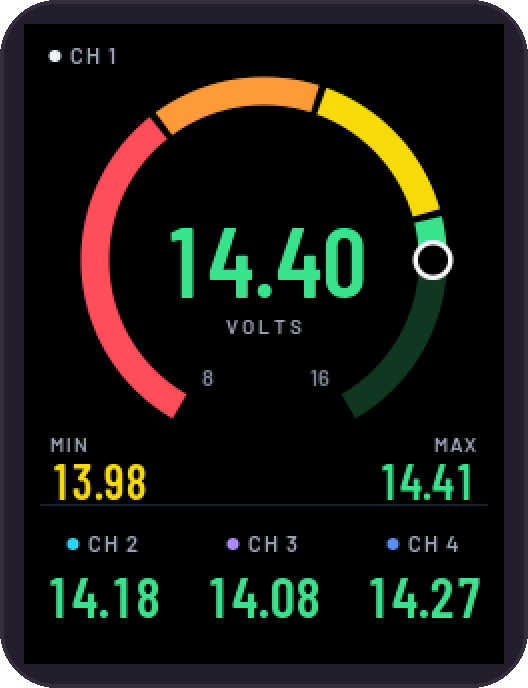
5. Color ring
A ring in your zone colours around the main reading.
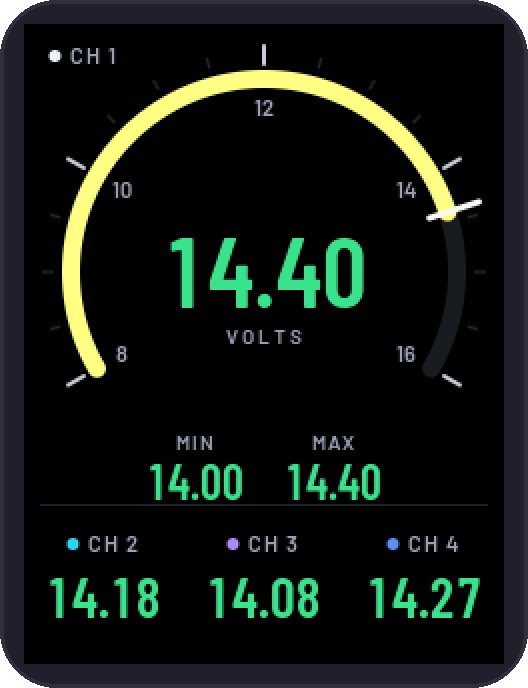
6. Speedometer
A speedometer arc in your arc colour. The numbers show your zone colour.
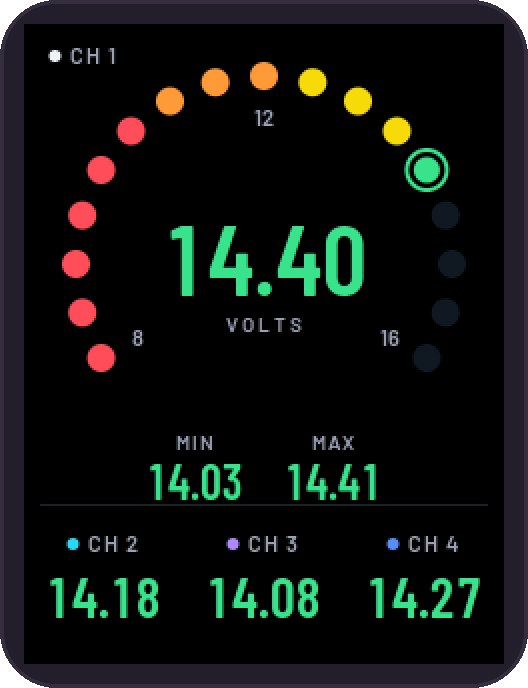
7. Dot dial
Dots light up around the dial, up to your reading.
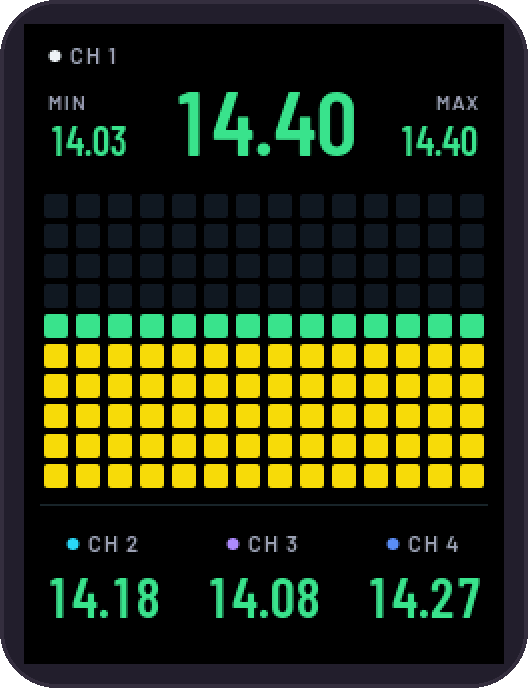
8. Bar meter
Bars of the last 8 seconds, in your zone colours.
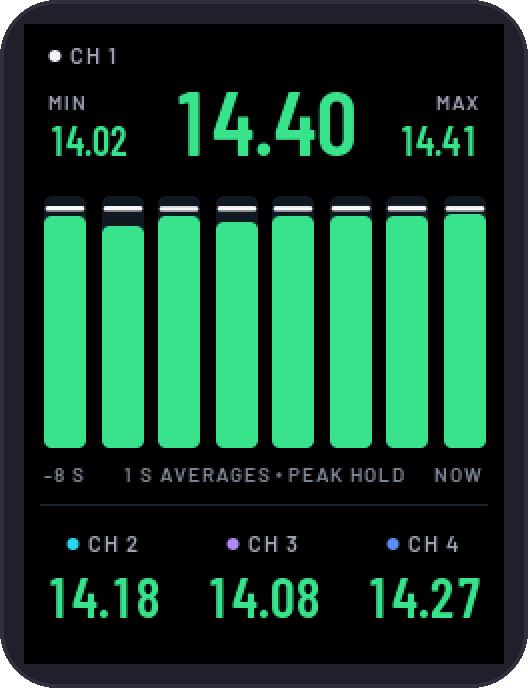
9. Average bars
A bar for each second's average, with that second's peak held.
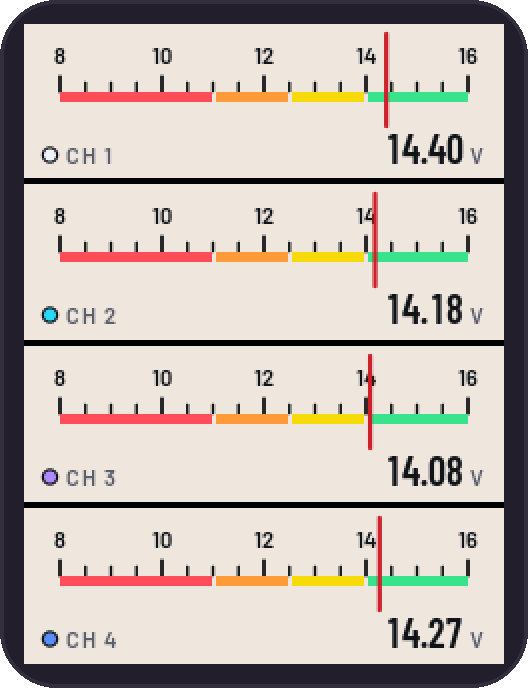
10. Dual meter
A dial for every channel.
New in 3.3
Faces 11 to 18.
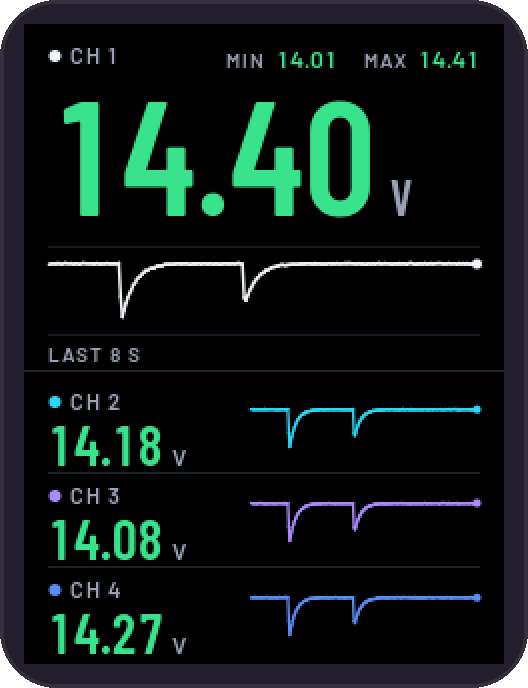
11. Hero
Channel 1 big, with every channel's last 8 seconds beside it.
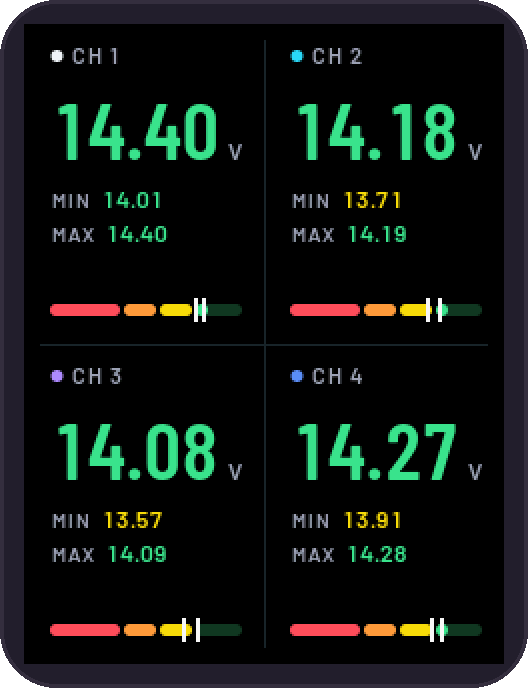
12. Tiles
A tile for each channel, each with its own zone bar.
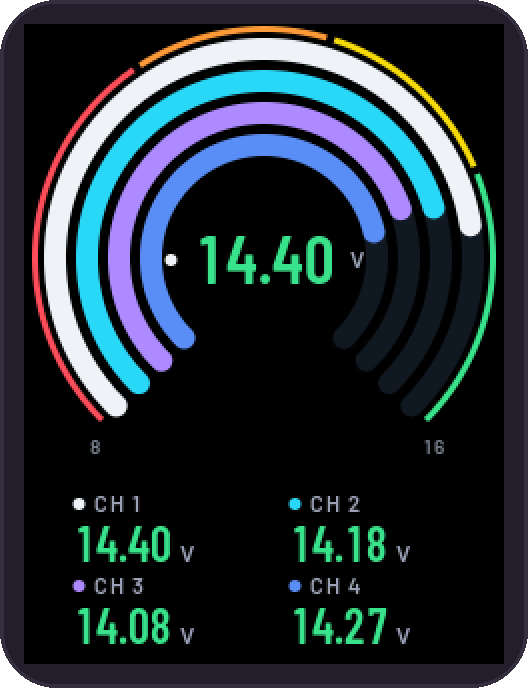
13. Rings
A ring for each channel, one inside the other.
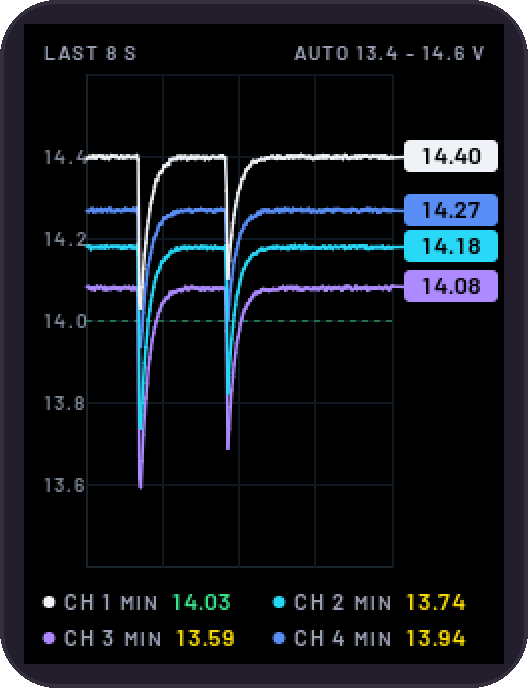
14. Scope
Every channel's last 8 seconds on one graph. The graph sizes itself to your voltage.
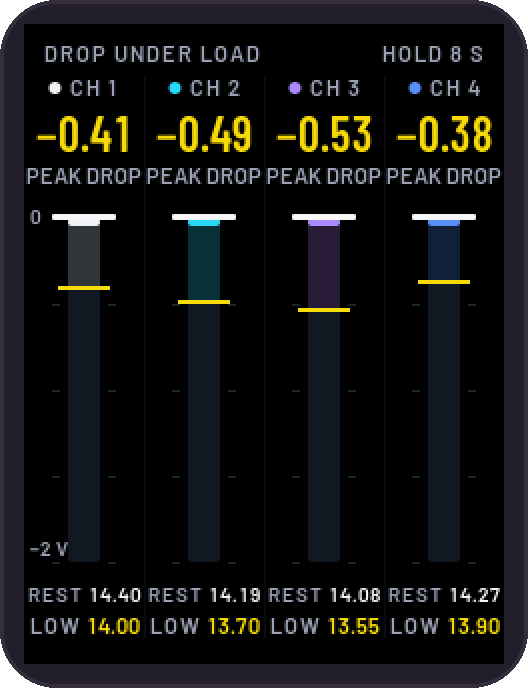
15. Sag
How far each channel drops under load. Each drop stays on screen for 8 seconds.
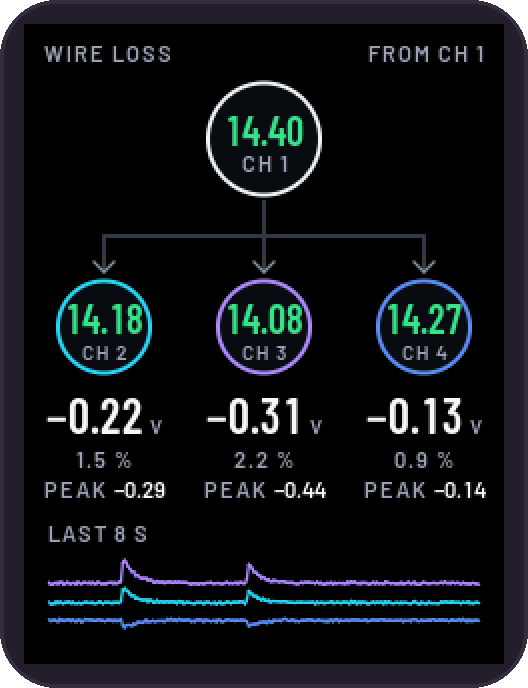
16. Wire loss
The voltage you lose between channel 1 and your other channels. Put channel 1 at your battery and the others at your amps to see what your wiring costs you.
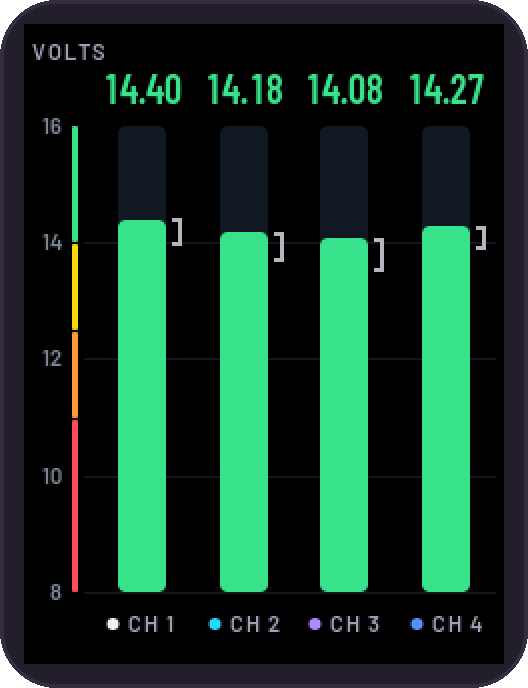
17. Columns
A column for each channel on your scale, with its lowest and highest marked.
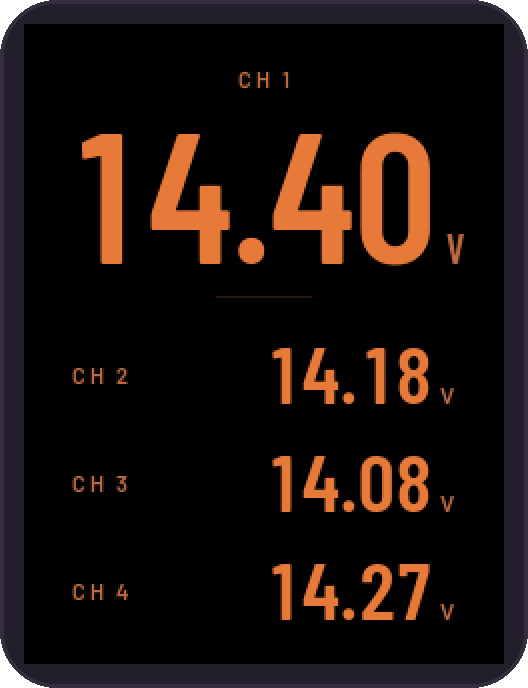
18. Night
Dim, warm numbers for night driving. A small dot shows the colour of your voltage.
Competition
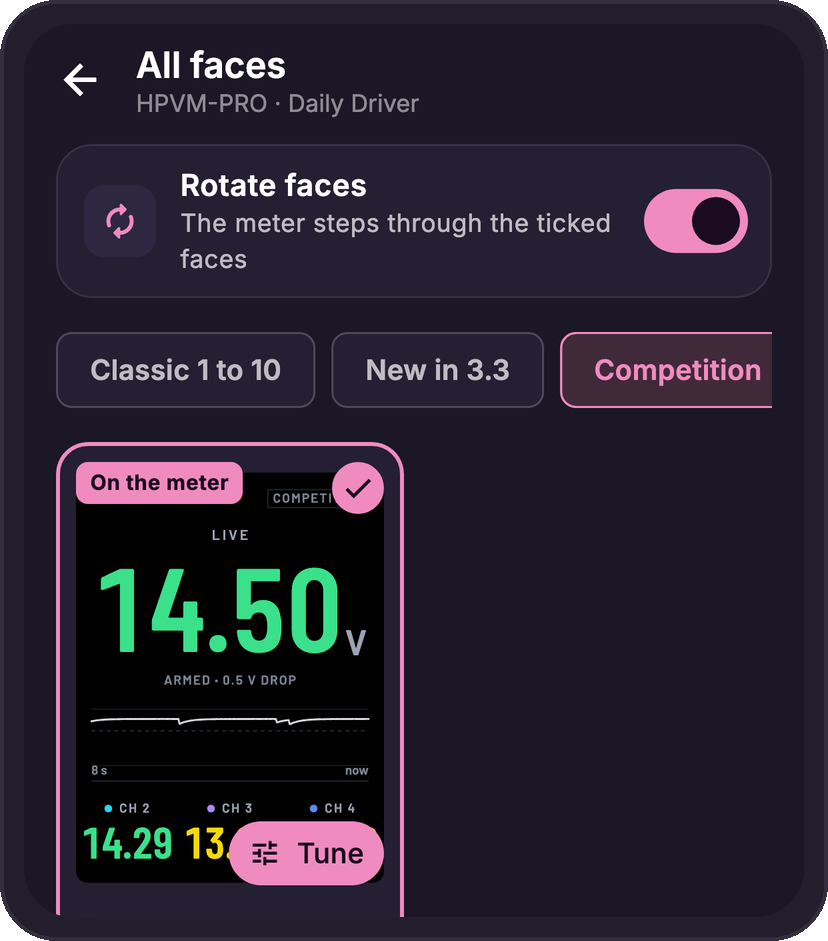
Face 19. Made for burps and competition runs. It shows your live voltage, then holds the lowest voltage of each hit on screen, so you can read it after the note ends.
Tap Tune on its card in All faces to set the drop that counts as a hit, and how long the lowest reading stays. See Competition.