
Overview
See your volts and change your volume from your wrist. The LF Audio app for Apple Watch shows your base stations and HPVM battery meters. It comes free with the LF Audio app from the App Store.
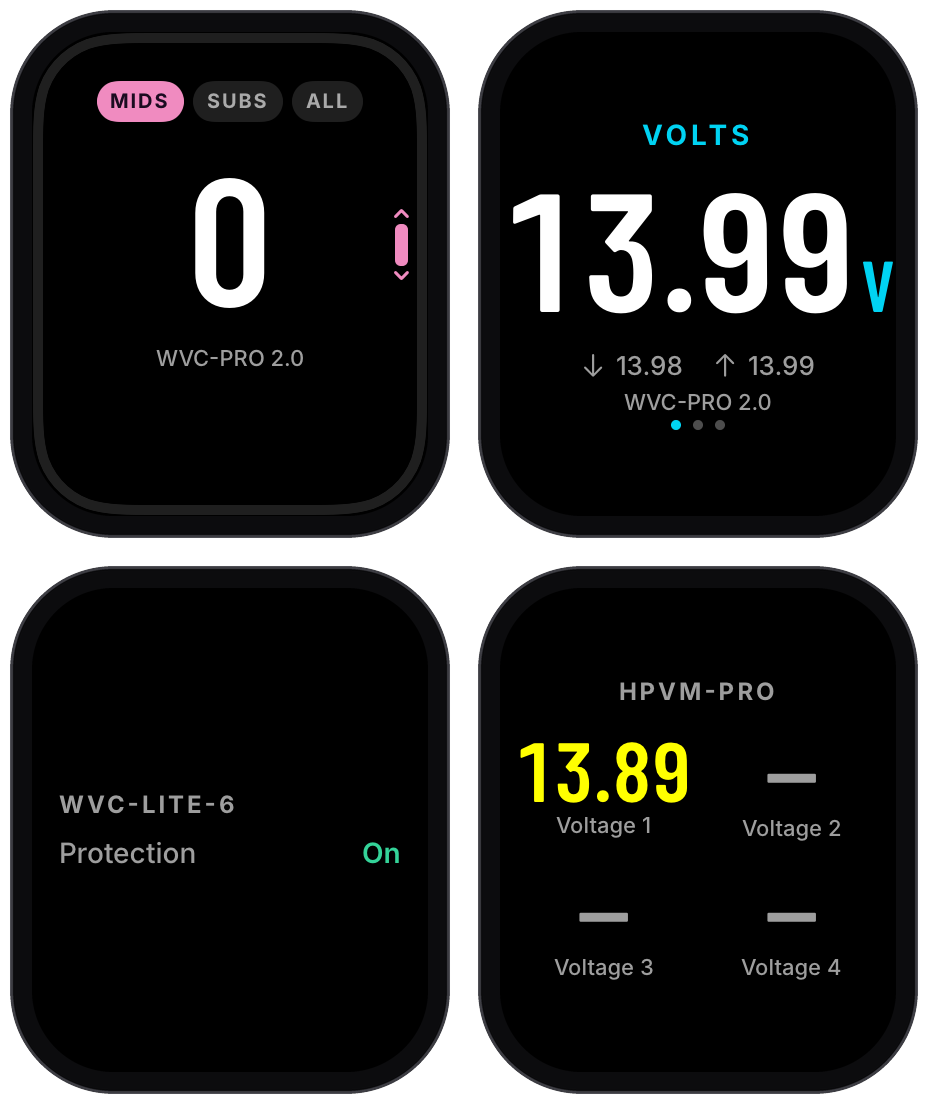
| Page | What it shows |
|---|---|
| Volume | Your base station's volume, as a big number. Turn the Digital Crown to change it. |
| Volts | Your system's voltage, with the lowest and highest since you opened the watch app. |
| Base station | Protection on or off, and amp temperatures on a PRO base station. |
| Battery meter | Each voltage your HPVM battery meter reads, in your meter's colors. |
You can also put your voltage on your watch face. See LF Audio on Your Watch Face.
What You Need
- An Apple Watch with watchOS 10 or newer, paired to your iPhone.
- The LF Audio app on your iPhone, with your units paired to it.
- To change volume with the Digital Crown: base station firmware 4.30.1 or newer. See Crown Volume.
- To use your watch with your iPhone left behind: base station firmware 4.34.0 or newer. See Use Your Watch Without Your iPhone.
Get the Watch App
The watch app comes inside the LF Audio iPhone app. There is nothing else to buy or download.
- On your iPhone, install or update LF Audio from the App Store.
- Open the Watch app on your iPhone.
- Scroll down to Available Apps.
- Tap Install next to LF Audio.
If Automatic App Install is on in the Watch app, LF Audio goes on your watch by itself. Give it a few minutes.
First Open
- Turn on your car so your units have power.
- Open LF Audio on your iPhone. Wait until your units show as connected.
- On your watch, press the Digital Crown and tap the LF Audio icon.
- The first time, the watch asks to use Bluetooth: "LF Audio uses Bluetooth to show your readings when your iPhone is not nearby." Allow it, so the watch can read your battery meter by itself.
- The watch shows Looking for your units, then your pages.
Swipe up and down to move between the pages.
If the watch shows a message instead, it tells you what to do. See Apple Watch Troubleshooting.
The Pages
Volume
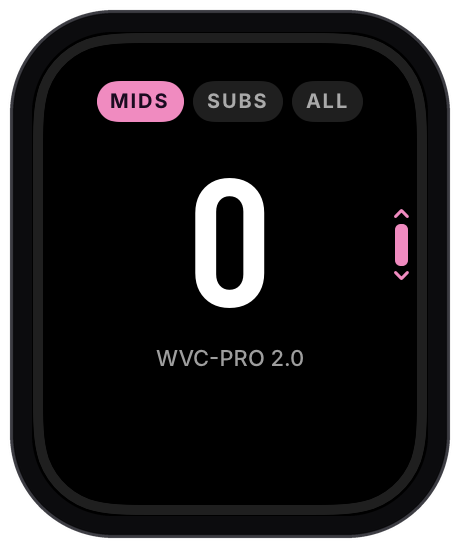
- The big number is your volume.
- Have more than one group? The tabs at the top show each group by its name, like Mids and Subs. Tap a tab to pick that group.
- Tap All to turn all your groups together. They keep the same balance, and each group's level shows under the number.
- The line around the edge of the screen fills up as the volume goes up.
- Turn the Digital Crown to change the volume. See Crown Volume.
This page shows only when a base station with volume is connected.
Volts
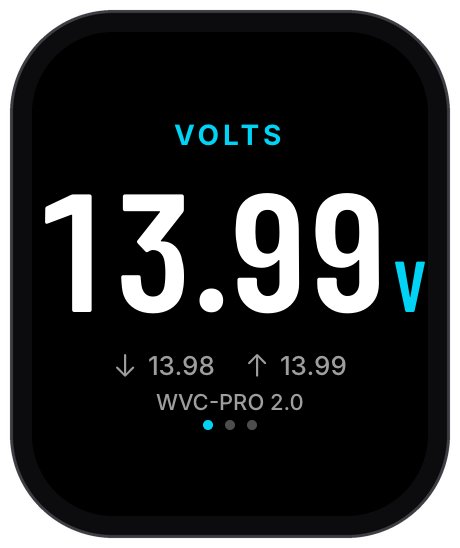
- The big number is your voltage right now.
- The arrows show the lowest and highest voltage since you opened the watch app.
- The unit's name is under the numbers.
- Have more than one unit? Tap the screen for the next one. The dots show which unit you are on.
Base Station
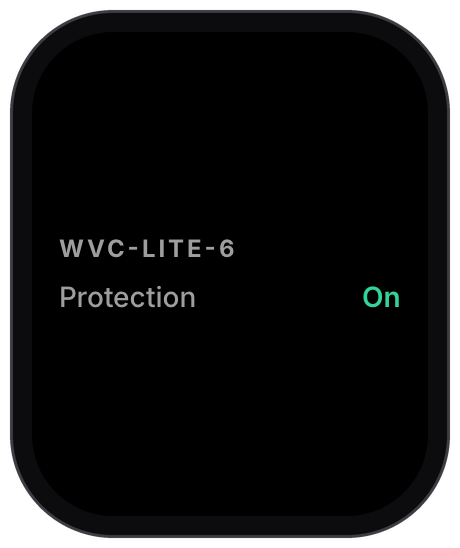
- Protection shows On or Off, the same as the protection setting in the app.
- On a PRO base station, the page also shows your amp temperatures. They show in °F or °C, the same as your watch's region.
Battery Meter
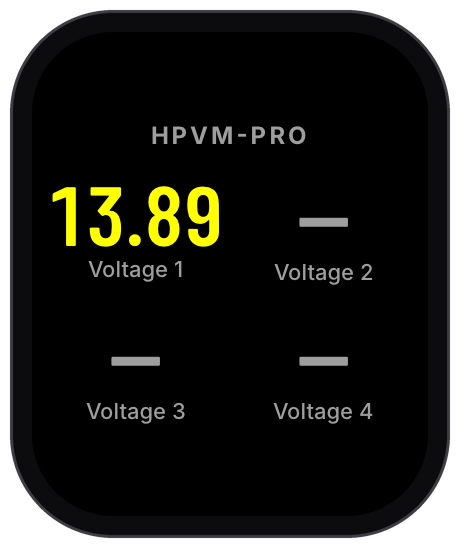
- Each voltage your HPVM reads gets its own number.
- The colors are your meter's own colors, the ones you picked in the app.
- A dash means that input has no reading.
This page shows only when a battery meter is connected.
Crown Volume
On the Volume page, turn the Digital Crown to change your volume. The number changes right away, and your base station follows.
A small mark next to the Crown shows when the Crown can change your volume.
You feel a click every 10 steps.
Crown volume needs base station firmware 4.30.1 or newer. See Firmware Updates.
On older firmware, the Volume page still shows your volume, with the base station's name under it. Turning the Crown does not change it.
If the base station turns down a Crown turn because its main processor's firmware is too old, the watch says Update this base to change volume here.
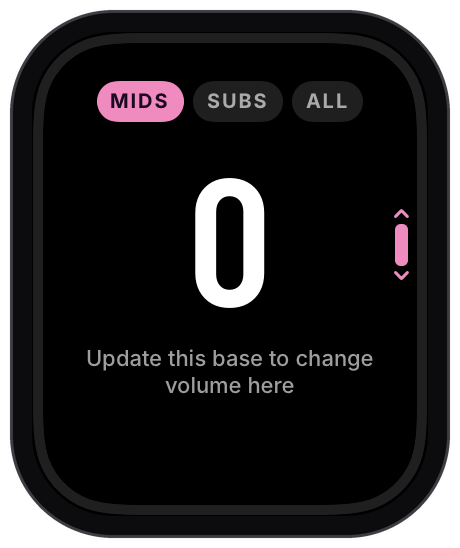
- Volume you change with your knob or the iPhone app shows on the watch too.
Adding and Removing Units
The watch shows the units your iPhone app is connected to. You add and remove them on your iPhone.
- To add a unit: pair it in the LF Audio app on your iPhone. See Paired Devices. It shows on the watch once the iPhone app connects to it.
- To remove a unit: forget it in the LF Audio app on your iPhone. It leaves the watch too.
The watch shows base stations and HPVM battery meters. Base stations come first.
Use Your Watch Without Your iPhone
Leave your iPhone at home and still see your volts and turn your volume from your wrist. Your watch talks to your units over its own Bluetooth.
- HPVM battery meters: nothing to set up. Your watch reads them by itself.
- Base stations: set up each base station for your watch once, as below. It needs base station firmware 4.34.0 or newer. See Firmware Updates.
The watch knows only the units your iPhone app has shown it. Open LF Audio on your iPhone once to add your units.
Set Up a Base Station for Your Watch
Turn on your car. Keep your iPhone and your watch close to the base station.
In LF Audio on your iPhone, open your base station and tap the gear icon to open its settings. On the INFO tab, find the APPLE WATCH card. See Device Settings.
Tap Use with my watch. The card says Setting up your watch..., then Done.
Open LF Audio on your watch. The top page says Pair and your base station's name. If the watch opens on another page, swipe down to it.
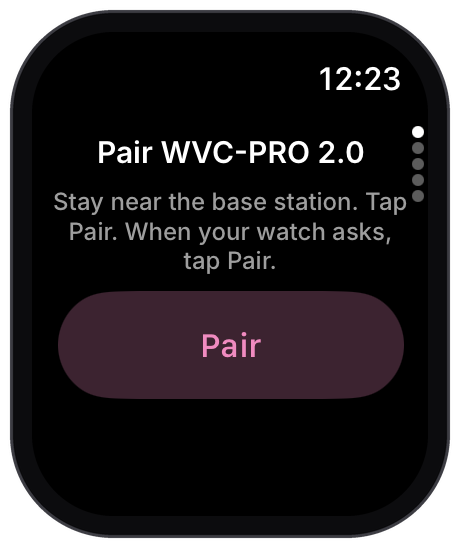
Tap Pair. When your watch asks to pair with the base station, tap Pair. There is no PIN to type.
The page says Paired. Your watch now reads this base station and turns its volume with the Crown, with or without your iPhone.
- The APPLE WATCH card shows on an iPhone, when LF Audio is on your watch and the base station has firmware 4.34.0 or newer.
- The card lists the watches set up for this base station. Tap Remove to take one off. A base station takes up to 4 watches.
- Your watch counts as one of the phones your base station remembers. If you use Forget Phones, your watch tells you how to pair it again.
If the watch shows a message instead of Paired, see Pairing a Base Station With Your Watch.
With Your iPhone
A base station you have not set up for your watch shows through the LF Audio app on your iPhone. Keep your iPhone with you, close to your watch.
- The LF Audio app on your iPhone can run in the background. You do not need to keep it open. If you closed it from the app switcher, open it again.
- While LF Audio is on your watch, the iPhone app keeps your units connected in the background, so the watch can read them.
Related
- LF Audio on Your Watch Face: see your volts at a glance
- Apple Watch Troubleshooting: no readings, pairing, or the Crown does nothing
- Get the LF Audio App: the App Store and Google Play links
- Home Screen Widgets: your readings on your iPhone and in CarPlay