
Overview
Put your voltage on your Apple Watch face. You see your last reading every time you raise your wrist. Open the app for a fresh one.
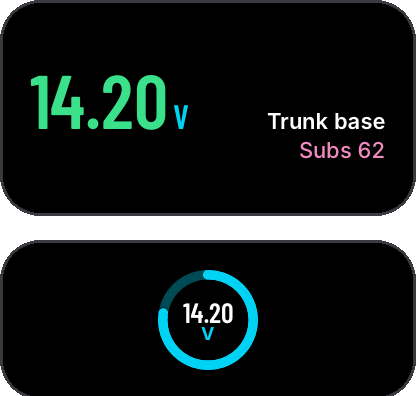
LF Audio adds a Voltage complication. It shows the voltage the LF Audio watch app last read, and the name of your unit when there is room.
Note
You need the LF Audio watch app first. See Apple Watch App.
Pick a Face With Room
A complication needs a spot on the face, called a complication slot.
- Modular has a big middle slot. It shows your voltage, your unit's name and your volume.
- Many other faces have small round, corner or top slots. They show your voltage as a number.
- Some faces have no slots at all, like Photos. Pick another face to add LF Audio.
Add It on Your Watch
- Touch and hold your watch face.
- Swipe to a face with slots, like Modular. Or tap + to add one.
- Tap Edit.
- Swipe left until you see Complications.
- Tap the slot you want.
- Scroll to LF Audio and pick Voltage.
- Press the Digital Crown to save. Tap the face to use it.
Add It From Your iPhone
- Open the Watch app on your iPhone.
- Tap Face Gallery and pick Modular.
- Under Complications, tap a slot.
- Pick LF Audio.
- Tap Add. The new face goes on your watch.
To change a face you already have, tap it under My Faces on the My Watch tab. Steps 3 and 4 are the same, and the change goes to your watch by itself.
Reading It
- The number is your base station's voltage. With only a battery meter, it shows the meter's voltage in your meter's colors.
- When the reading is more than 5 minutes old, it turns grey. On a small round slot, the ring turns grey.
- To get a fresh reading, tap the complication. It opens the LF Audio watch app.
Tip
You can also add LF Audio to the Smart Stack. Turn the Digital Crown on your watch face to open the Smart Stack. Touch and hold it, tap +, then pick LF Audio.
Related
- Apple Watch App: the watch app's pages and Crown volume
- Apple Watch Troubleshooting: no readings on the watch