
Share an update on your build. Post photos, a video from your phone, or a run you recorded with the app.
What you need
- Community turned on, and joined. See Community.
- The right to share what you post, including the music in a video. See Copyright and Takedowns.
Post an update
- Go to Community and tap the round + at the bottom right. It is on the Feed, Map, Meetups and your profile.
- Pick the Car this post is about, or No car. This shows only when you have a build card. With one build card, the page starts on that car.
- Under Photos or a video, tap Photos. Then tap Take a photo or Choose from library. You can add up to 4 photos.
- Type a Caption, up to 280 characters.
- Tap Post.
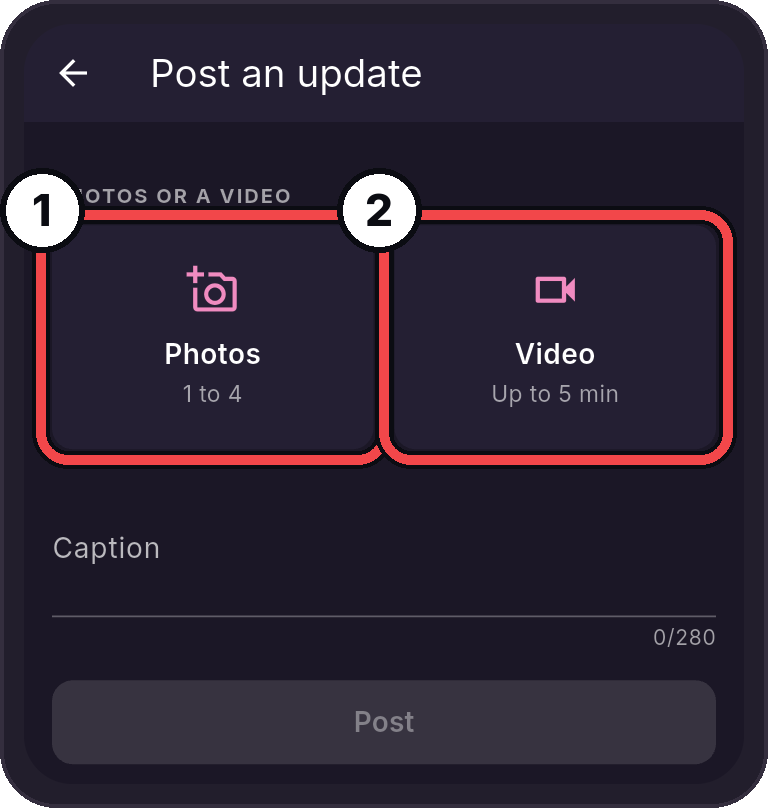
- Photos: Up to 4 photos.
- Video: One video from your phone, up to 5 minutes.
The post shows on the Feed, on your profile and on the car's build card. Photos are sent without their location or camera details.
Post a video from your phone
- Tap the round + to open Post an update.
- Under Photos or a video, tap Video.
- Pick a video from your phone. It can be up to 5 minutes. A longer video posts its first 5 minutes.
- The video shows on the page, with its length. Tap it to play it. To pick another, tap Remove video, then tap Video again.
- Pick the Car, and type a Caption if you like.
- Upload on mobile data is off at first. The video waits for Wi-Fi. Turn it on to send it over mobile data.
- Tap Post.
The page shows "Processing" with a percent, then "Posting". To stop, tap Cancel. When it is done, the app says "Posted. Others see it once the video is ready."
Post a run
After you record a video with Record a run, the app asks Post this run? See Video Capture.
- Readings on puts your readings with the video. Turn it off to post the video alone.
- Pick the car, and type a caption.
- Show in Community is on at first. Turn it off to keep the post only on your profile and your car.
- Post sends it. Just save keeps it on your phone only. Share elsewhere opens your phone's share sheet.
When you stop a recording session, the app asks Post this run? too. Tap Post this run to add a caption and post its readings. Nothing goes up until you tap Post. Tap Not now to keep it on your phone only.
You can also post a run you recorded earlier. Open the saved session and tap Post this run. See Recording Sessions.
A run whose readings came from your own paired LF units can show Verified run. See Verified run.
While a video goes up
The app first gets the video ready ("Processing"), then sends it.
- Upload on mobile data is off at first. The video waits for Wi-Fi. Turn it on to send it over mobile data.
- If the connection drops, the upload carries on where it stopped.
- On Android, you can leave the app. A notification shows how far it is, like "Sending your run video". Another one tells you when it is sent, or if it could not be.
- On iPhone, keep LF Audio open until the page closes. Then you can leave the app and the video carries on. If your iPhone says "Run video ready to send", open LF Audio for a moment, then it carries on by itself.
- The app says "Posted. Others see it once the video is ready."
Delete a post
- Find your post: on your profile, under Posts or Videos, or anywhere else it shows.
- Tap the three dots on the post, then Delete. On a video, the three dots are on the right side.
- Tap Delete to confirm.
It is taken off Community for everyone. To take down every post at once, turn off Community. See Turn off Community.
If something does not work
| Message | What to do |
|---|---|
| "Videos can be up to 5 minutes." | Post the first 5 minutes, or pick a shorter video. |
| "Video posts are open to testers for now." | Post photos, or post the run without video. |
| "You have reached today's limit for videos. Try again tomorrow." | Post it tomorrow. |
| "This phone could not process the video." | Try again, or post the run without video. |
| "This video is too big to post." | Pick a shorter video. |
| "That photo is too large. Pick one under 8 MB." | Pick a smaller photo. |
| "That photo is too small. Pick one at least 256 pixels on each side." | Pick a bigger photo. |