
The builds map shows LF builds around the world, by area. Each bubble is an area with its number of builds. It never shows an address, or where a car is right now.
Look at the map
- Go to Community, then Map.
- Pinch to zoom. Tap a bubble to see the builds in that area.
- Tap Near me to center the map on your area. Your location stays on your phone.
You do not need an account to look.
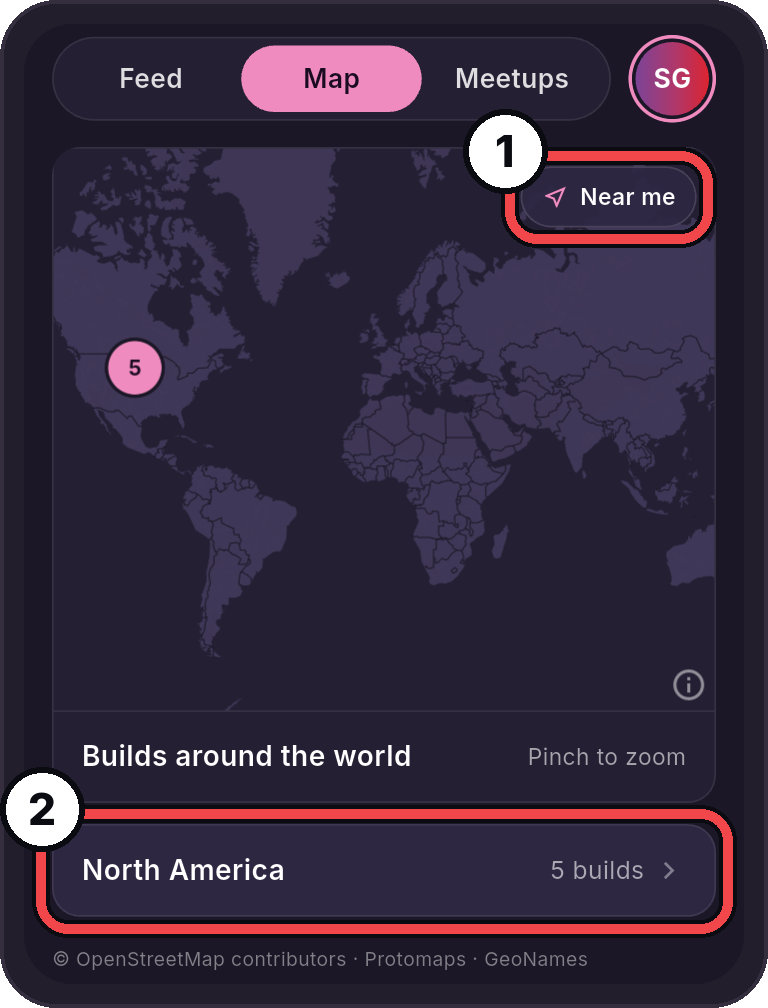
- Near me: Center the map on your area.
- An area: Tap it to see the builds there.
Put your build on the map
The first time you open the map with a build card, a line above the map says "Put your build on the map?" Tap Set up to answer. Tap the x to say Not now.
- Share approximate location: your phone rounds your spot to a city-sized area. No coordinates are stored. It is taken once, never followed.
- Pick an area by name: type a city, a state or province, or a country.
- Not now: nothing is shared.
Your build shows within a few minutes. One choice covers all your builds. A car with Show this car to others off never shows on the map.
Change or turn it off
- Open Settings (the gear at the top right of the app), then Privacy. On some phones, the rows are at the bottom of Settings. Or, in Community, tap your picture, then the gear.
- Under Builds map, or under Privacy in Community settings:
- Turn off Show my build on the map to take your build off. You can still look at the map.
- Tap Change next to Area to pick a new area.