
Community is where LF owners show their builds. You can make a build card for your car, post photos and videos, react to other builds, and find meetups. It is optional. Your LF gear and the tools work the same with Community on or off.
What you need
- The LF Audio app, kept up to date. See Get the App.
- An LF Audio account to post, react, follow or join a team. Looking around needs no account. See Account and Sign-In.
- To be 18 or older to join.
Turn on Community
Community is off until you turn it on.
- Open the LF Audio app.
- Tap the Community tab at the bottom.
- The first time, a page says "Show your build. Find other builders." It also says "Community is for people 18 and older."
- Tap I am 18 or older, turn it on.
Community opens on the Feed.
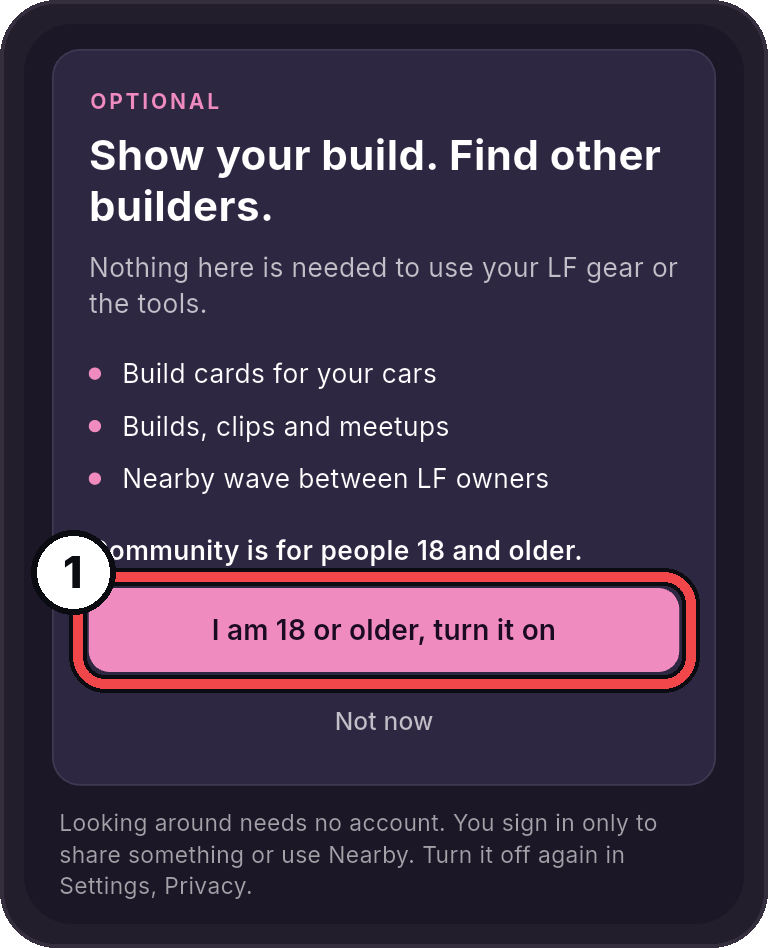
- I am 18 or older, turn it on: Turn on Community.
Tap Not now to skip it. You can turn it on any time from the Community tab.
Look around
A bar along the top of Community has three buttons and your picture:
| Button | What it shows |
|---|---|
| Feed | Posts and new build cards from LF owners. See Watch, React and Follow. |
| Map | Builds around the world, by area. See Builds Map. |
| Meetups | Meetups and shows from LF Audio and its dealers. |
| Your picture | Your profile. See Your profile. |
The round + at the bottom right posts an update. See Post Photos and Videos.
You can look at builds, videos and meetups without signing in. A bar under the buttons says "Sign in to post, react and follow." Small locks show what needs an account. Tap one to sign in. After you sign in, you are back where you were.
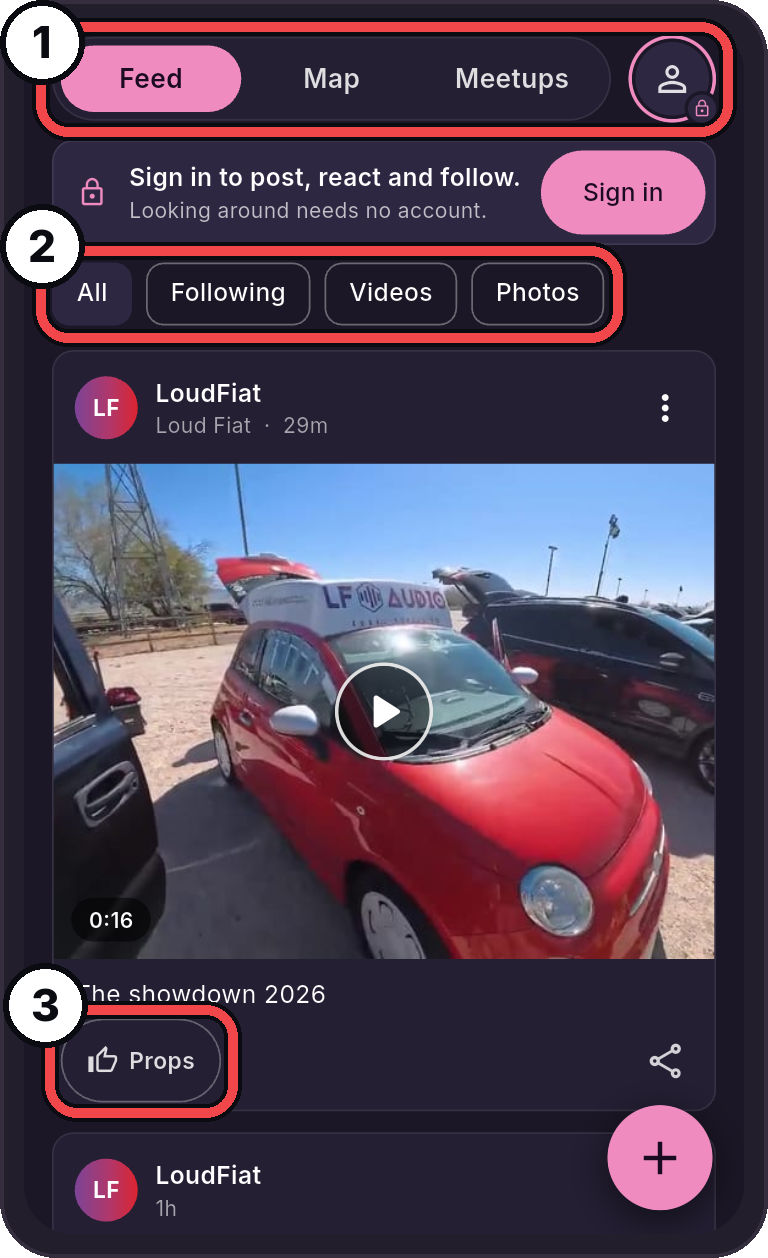
- The bar: Feed, Map, Meetups and your picture.
- Chips: All posts, only the ones you follow, only videos or only photos.
- Reactions: Tap to give props. See Watch, React and Follow.
Join Community
The first time you post, react, follow or make a build card, the app asks you to join. You do this once.
- Sign in, if the app asks. See Account and Sign-In.
- Pick a Username. People see it on your build cards and posts.
- Use 3 to 20 letters, numbers,
_or. - Start with a letter.
- Use 3 to 20 letters, numbers,
- Tick I am 18 or older and agree to the Community rules. Tap Read the Community rules to read them first.
- Tap Join.
Nearby and Community use the same username. If you already have a Nearby username, you only tick the box.
You can change your username once every 30 days.
The Community rules
No harassment, hate, threats, adult content or violence. Post only what you made or have the right to share, including music. Report anything that breaks the rules. We aim to look at reports within a day. We remove what breaks the rules, and stop people who break them from posting. The full rules are section 18 of our terms of service.
See Report and Block and Copyright and Takedowns.
Your profile
Tap your picture at the top right of Community to open your profile. It shows:
- Your picture, and how many builds, posts, followers and people you follow.
- Share profile: send a link to your profile.
- Your builds: your build cards, side by side, with how many posts each has. Tap one to open it. Tap Add a car to make a new one. See Build Cards.
- Messages from LF Audio: shows only when we write to you about one of your posts. See Copyright and Takedowns.
- Teams: find or make a team. See Teams.
- Invite a friend: send your link. See Invite a friend.
- Posts and Videos: everything you posted, three across. Tap one to open it.
Tap someone's name anywhere in Community to see their profile. It has Follow in place of your own buttons.
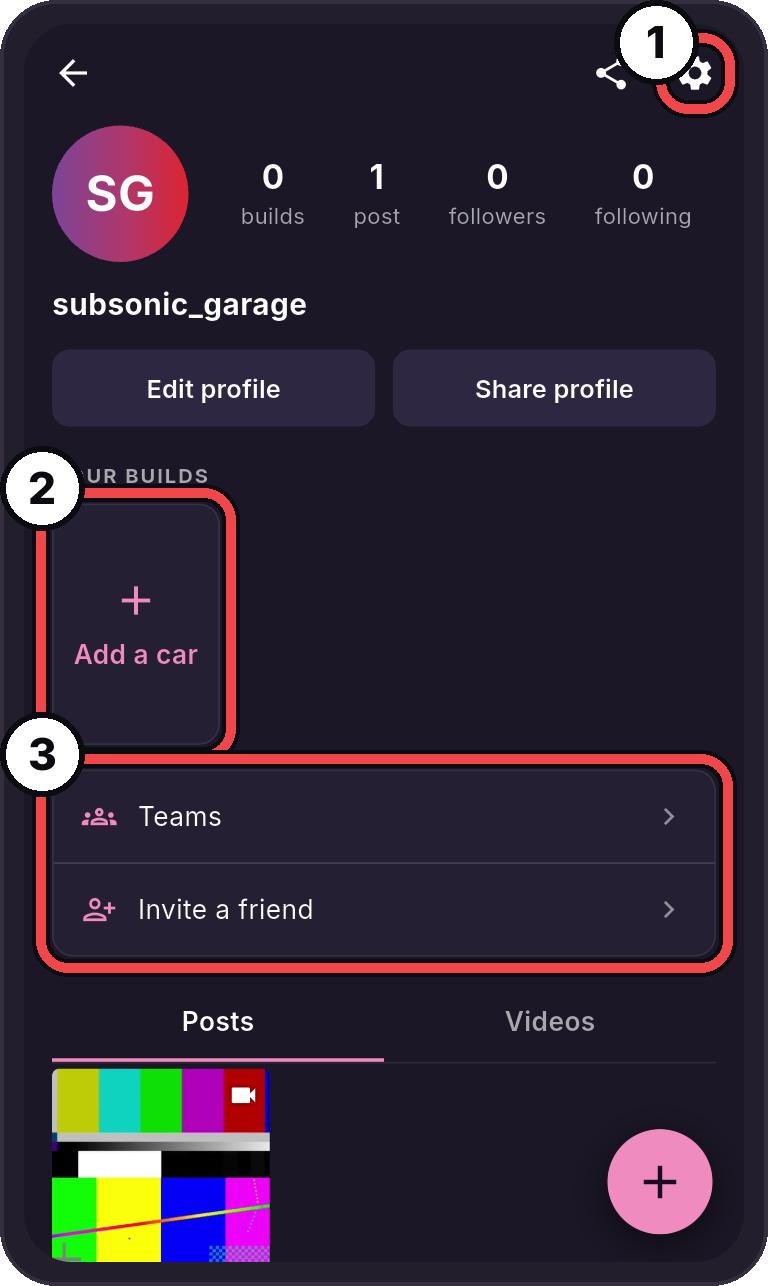
- The gear: Open Community settings.
- Add a car: Make a build card for a car.
- Teams and Invite a friend: Find a team, or send a friend your link.
Community settings
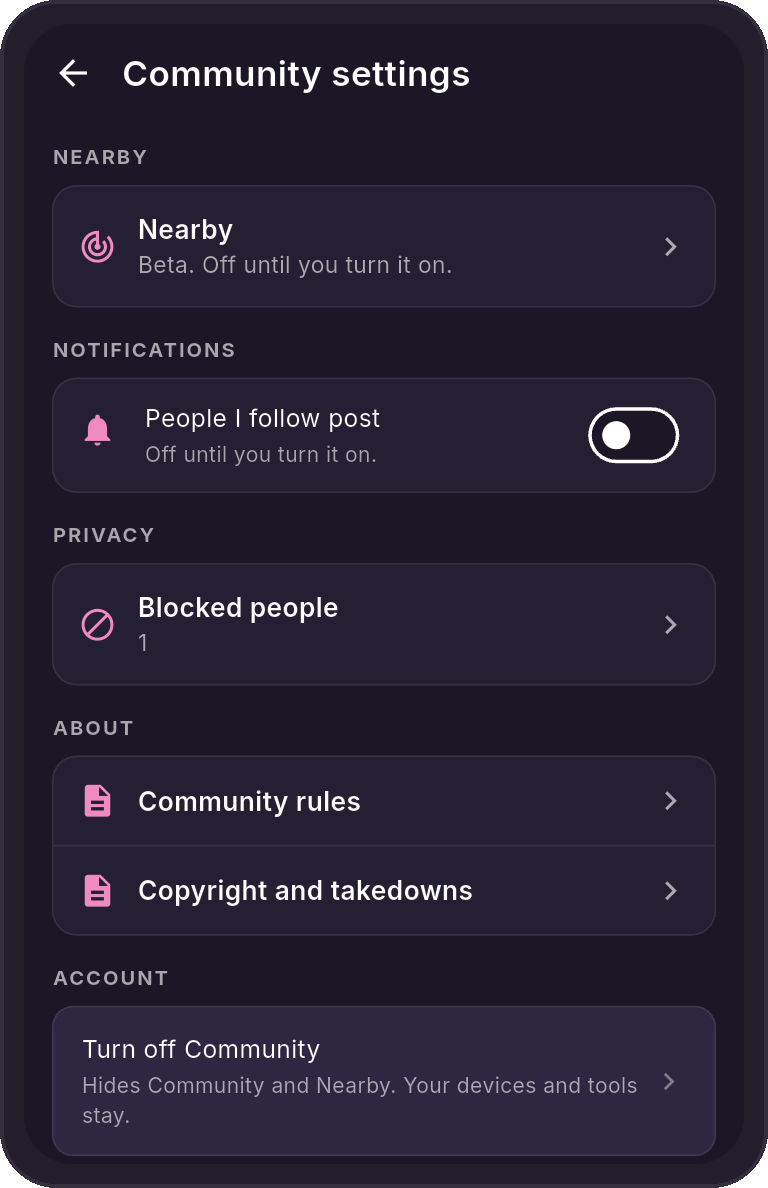
Tap the gear at the top of your profile. Community settings has:
| Row | What it does |
|---|---|
| Nearby | Opens Nearby, where it is open on your account. |
| People I follow post | A notification when people you follow post. Off until you turn it on. |
| Show my build on the map and Area | See Builds Map. Shows once you have a build card. |
| Blocked people | See and unblock the people you blocked. See Report and Block. |
| Community rules | Opens the rules. |
| Copyright and takedowns | Opens our copyright page. |
| Turn off Community | See Turn off Community. |
Invite a friend
- Go to Community, then tap your picture at the top right.
- Tap Invite a friend.
- Tap Share to send your link, or Copy link.
The page counts how many friends joined and how many made a build card. When a friend opens your link, the app says "A friend invited you" and helps them make a build card.
Turn off Community
- Open Settings (the gear at the top right of the app).
- Tap Privacy. On some phones, the row is at the bottom of Settings instead.
- Tap Turn off Community.
- Tap Turn off to confirm.
You can also turn it off from your profile: tap the gear, then Turn off Community.
Everything social is hidden again. Others no longer see your build cards and posts. If Nearby is on, it turns off too. Your devices and tools stay as they are. To come back, open the Community tab and turn it on again.
If you turned Community off on another phone, the app asks "Community is off for your account" before you post. Tap Turn on to share again.
To delete your build cards, posts and username for good, delete your account. See Delete Your LF Audio Account.
If something does not work
| Message | What to do |
|---|---|
| "Not open yet. It is in testing with a few owners." | This part of Community is not open on your account yet. Check back soon. |
| "Couldn't reach Community. Check your connection and try again." | Check your internet connection, then try again. |
| "Too many at once. Wait a minute and try again." | Wait a minute, then try again. |
| "That text is not allowed. Change it and try again." | A word was refused. Change it, then try again. |
| "That username is taken. Try another." | Pick another username. |
| "Your account cannot post in Community." | Your account was stopped from posting. Contact us if you think this is wrong. |