
Overview
Fixes for the LF Audio Apple Watch app. Most of them start on your iPhone, because the watch learns your units from the LF Audio iPhone app. It reads a base station through your iPhone, unless you set that base station up for your watch. See Use Your Watch Without Your iPhone.
No Readings on the Watch
Check these in order:
- Is the iPhone app connected? Open LF Audio on your iPhone. Your units should show as connected. If not, see Device Monitoring.
- Are your units paired to this iPhone? The watch shows only units paired to the iPhone it is paired with. See Paired Devices.
- Is your watch near your iPhone? Keep your iPhone with you, close to your watch. A base station you set up for your watch works without your iPhone; stay close to the base station.
- Is your car on? Your units need power to send readings.
Then close the watch app and open it again.
What the Watch Messages Mean
| The watch says | What to do |
|---|---|
| Looking for your units | Wait a few seconds. If it stays, check No Readings on the Watch. |
| Open LF Audio on your iPhone | Open the LF Audio app on your iPhone. It can stay in the background after that. |
| Turn on your car, then open LF Audio on your iPhone | Your iPhone app is not connected to any unit. Turn on your car, check that Bluetooth is on in your iPhone's Settings, and open the app. |
| Install LF Audio on your iPhone | Install LF Audio on your iPhone. See Get the Watch App. |
| Open LF Audio on your iPhone once to add your units | Your watch does not know your units yet. Open LF Audio on your iPhone so it can send them to the watch. |
| Allow Bluetooth for LF Audio in Settings | The watch needs Bluetooth to read your battery meter by itself. Open Settings on your watch and allow Bluetooth for LF Audio. |
| Turn on Bluetooth | Turn on Bluetooth on your watch. |
| Turn on Bluetooth on your iPhone | Turn on Bluetooth in your iPhone's Settings. |
| This watch cannot reach your iPhone | Keep your iPhone close to your watch. Check that this watch is paired with your iPhone in the Watch app. |
| (unit name) is not connected | That unit is not connected right now. Turn on your car and check that the unit shows as connected in the iPhone app. |
A Unit Is Missing
The watch shows only the units your iPhone app has shown it. A base station shows while your iPhone app is connected to it, or, once you set it up for your watch, over the watch's own Bluetooth. An HPVM battery meter can also show over the watch's own Bluetooth, when your iPhone is away.
- Open LF Audio on your iPhone and check that the unit shows as connected.
- The watch shows base stations and HPVM battery meters. Other LF Audio products do not show on the watch.
Pairing a Base Station With Your Watch
This is the one-time setup that lets your watch use a base station with your iPhone left behind. See Set Up a Base Station for Your Watch.
No APPLE WATCH card in the base station's settings? The card shows only on an iPhone, when LF Audio is on your watch and the base station has firmware 4.34.0 or newer. Install the watch app (see LF Audio Is Not on My Watch) and update your base station (see Firmware Updates).
No Pair page on the watch? Tap Use with my watch on the iPhone first, with your watch close to your iPhone. Then open LF Audio on your watch and swipe down to the top page.
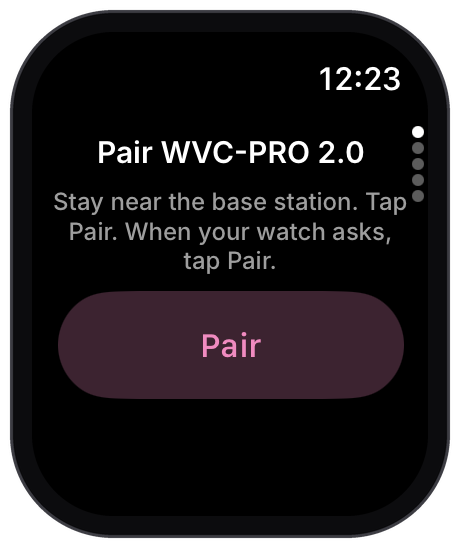
| The card or the watch says | What to do |
|---|---|
| Couldn't reach your Apple Watch. Try again. | Keep your watch close to your iPhone, open LF Audio on the watch, then tap Use with my watch again. |
| The base station did not answer. Try again. | Turn on your car, check that the base station shows as connected in the iPhone app, then try again. |
| This base station already has 4 watches. Remove one first. | Tap Remove next to a watch you no longer use, then tap Use with my watch again. |
| Pair this phone with the base station again, then try again. | Your iPhone needs a fresh pairing with the base station. Pair it again (see Paired Devices), then tap Use with my watch again. |
| Base station not found. Move closer and try again. | Turn on your car, stand close to the base station and tap Pair again. |
| Not paired in time or Not paired | Tap Pair, then tap Pair again when your watch asks to pair with the base station. |
| Wait (seconds) s, then tap Pair again. | The base station needs a short break between tries. Wait, then tap Pair. |
| The base station ended the link. | Tap Pair again, then tap Pair when your watch asks. |
| This base station no longer has your watch's pairing. | Do what the watch says: on your watch, open Settings, tap Bluetooth, tap the base station, then tap Forget Device. Then tap Pair again. This happens after Forget Phones. |
| Set up again in the LF Audio app. | On your iPhone, open the base station's settings. On the APPLE WATCH card, tap Use with my watch (or Set up my watch again). Then tap Pair on the watch. |
| Update this base station in the LF Audio app first. | Update your base station to firmware 4.34.0 or newer. See Firmware Updates. |
| Turn on Bluetooth on your watch, then tap Pair again. | Turn on Bluetooth on your watch, then tap Pair. |
The Crown Does Nothing
- Check your base station firmware. Crown volume needs firmware 4.30.1 or newer. On older firmware the Volume page shows your volume and the base station's name, but the Crown does not change it. See Firmware Updates.
- Go to the Volume page. The Crown changes volume only on the Volume page.
- Is the line around the edge grey, with no mark next to the Crown? Then the Crown cannot change the volume, for example on older firmware. The line also dims when you lower your wrist.
| The watch says | What to do |
|---|---|
| Update this base to change volume here | Your base station turned down the Crown turn because its main processor's firmware is too old. Update your base station's firmware in the LF Audio app. |
| Change volume on the main base | You have more than one base station. On the Volts page, tap until your main base station shows, then go back to Volume. If your main base station does not show, pair it in the iPhone app. |
| Volume can't change right now | Wait a moment and turn the Crown again. |
The Watch Face Shows an Old Number
The complication shows the voltage the watch app last read. When that reading is more than 5 minutes old, it turns grey.
Tap the complication to open the LF Audio watch app. It reads your units again. See LF Audio on Your Watch Face.
LF Audio Is Not on My Watch
- Install or update LF Audio on your iPhone from the App Store.
- Open the Watch app on your iPhone.
- Scroll to Available Apps and tap Install next to LF Audio.
Your watch needs watchOS 10 or newer.
Still Need Help?
Contact us from the Support tab in the LF Audio app. See Support and Warranty.