
Garage is the first tab of the LF Audio app. It lists your LF devices on top. Your cars and build cards are below, if you add any.
The first time you open the app
The app says "Welcome to LF Audio" and asks where to start:
- I have LF gear: add your device to see its readings, change settings and get updates. See Getting Started.
- No LF gear yet: look around the app first. The Tools tab opens.
You can do the other any time.
On an iPhone, and on Android in Europe and some other countries, a Privacy choices screen comes first.
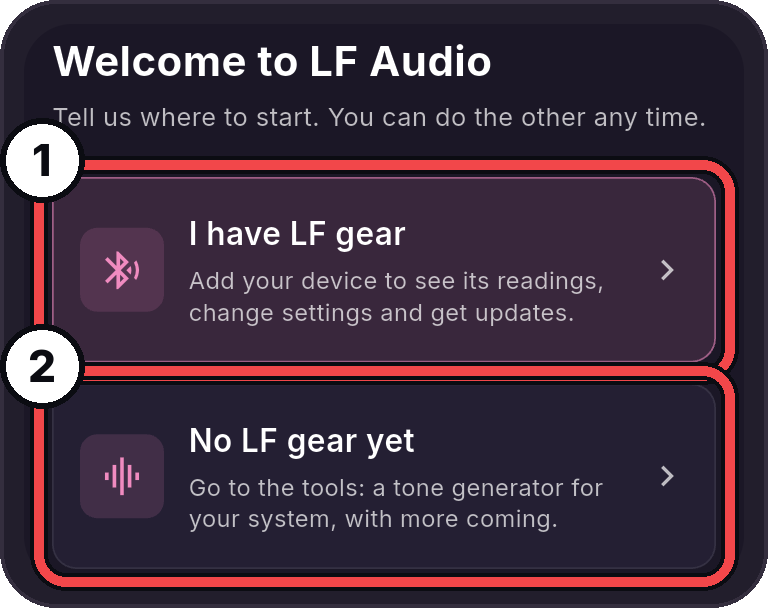
- I have LF gear: The app asks for Bluetooth. Tap Allow, and Add a device opens and looks for your device. Say no, and Garage opens with a Bluetooth is not allowed card.
- No LF gear yet: The Tools tab opens.
Your devices
Under Devices, each device you paired shows as a card with its live readings. Tap a card to open the device's page.
- To pair a new device, tap + Add a device next to the Devices heading.
- A device that is off or out of range stays on the list, dimmed, with its status.
See Getting Started and Paired Devices.
Cars and build cards
With Community on, Garage has a second shelf, Cars and build cards. Each car shows its build card. A card only you can see says Build card, only you see it.
- Tap Add a car to make a new build card.
- Tap a car to open it.
A device does not have to be in a car. Linking a unit to a car is optional. See Build Cards.
The bar above the tabs
While a device is connected, a bar sits above the tabs on every screen. It shows the device's name and its main readings, like the voltage and the volume. A base station with clip detection also shows Clean or Clipping.
- With two or more devices connected, tap the name to pick which one the bar shows.
- Tap the gauge at the right of the bar to open the drive screen.
- On a base station with firmware 4.30.1 or newer, tap minus or plus to turn the volume down or up. On older firmware the bar shows the volume only. See Change the Volume From the App.
The drive screen
The drive screen shows your readings big, on the whole screen, so you can see them at a glance. It keeps your phone's screen on while it is open.
It shows what your device sends, for example every voltage on a voltmeter, the temperatures, and Clean or Clipping for each channel. Tap Close to go back.
On a base station with firmware 4.30.1 or newer, the drive screen has a big minus and plus for the volume. With two or more channel groups, each group has its own minus and plus too. On older firmware it says Update your base to change volume here.
Do not look at your phone while you drive. Set it up before you go, and use a mount.