
A build card shows off one of your cars in Community. It has photos, tags, big numbers, the gear you run, and the LF units in the car. Other members can follow it and react to it.
What you need
- Community turned on, and joined. See Community.
- An LF Audio account. See Account and Sign-In.
You can have up to 20 cars on one account.
Make a build card
- Go to Community, then tap your picture at the top right.
- Under Your builds, tap Add a car.
- Type the Car name. For example, "2015 Fiat 500e".
- Add a Photo. One photo is enough to start.
- Tap Save.
The app says "Your build card is saved. Add more to it whenever you like." Each part you have not filled in yet shows as an Add more chip: Tags, Big numbers, A line about it, Link, Socials, Also running and LF units. Tap one to fill it in, then tap Save.
Others in Community can see your build card. You can hide it once it is saved. See Change or delete a card.
Save waits for your photos to finish sending. A photo shows Checking while we check it. Others see it once it passes.
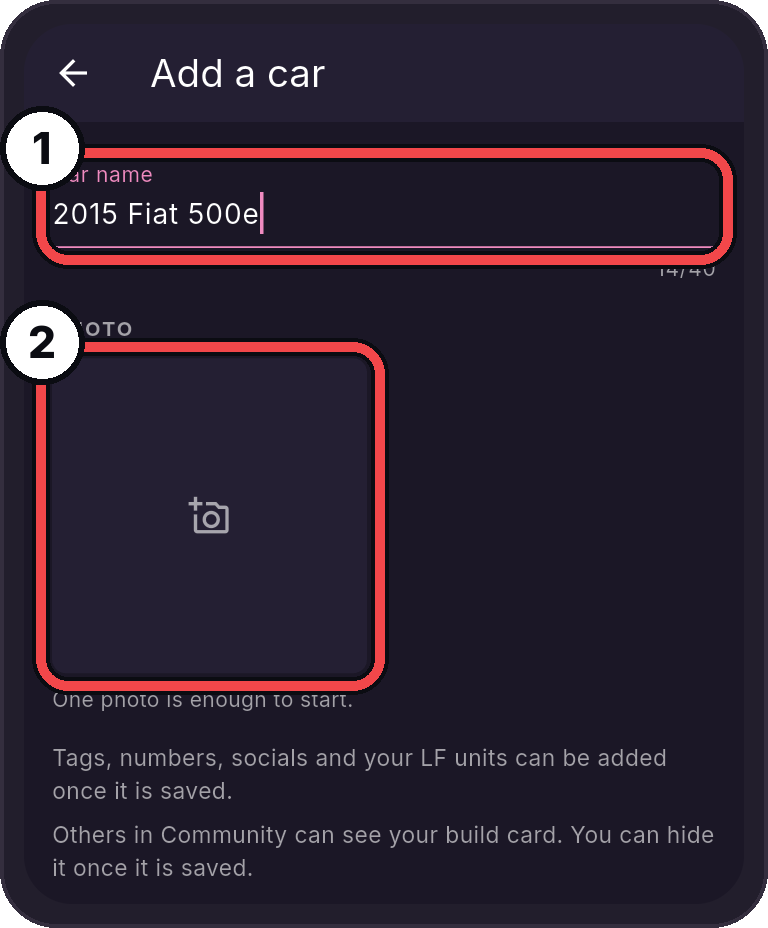
- Car name: Up to 40 characters.
- Photo: Tap to take or pick one.
What goes on a card
| Part | What to know |
|---|---|
| Photos | Up to 4. The first one is the big one. Tap a photo to Put first or remove it. |
| Tags | Pick from Daily driver, SPL, Sound quality, Show, Budget, Trunk, Walled, EV and High voltage. |
| Your own tags | Tap Add your own. Add up to 6, each 2 to 24 letters, numbers and spaces. Tap an idea to add it fast. |
| Big numbers | Up to 4. Type the Number and What it is, like "390k" and "W". |
| One line about it | Up to 140 characters. |
| Link | Optional. Use an https link to a build page, video or gallery. |
| Socials | Your Instagram, TikTok, Facebook or YouTube. See Add your socials. |
| Also running | Other gear in the car. See Add the gear you run. |
| Built by | The shop that built it. See Name the shop that built it. |
| Show this car to others | Off keeps the card to yourself. |
| LF units in this car | The LF units you paired with this phone. See Add your LF units. |
Photos are sent without their location or camera details.
Add your socials
- Under Socials, tap Add next to the app.
- Type Your name there. Or copy your profile link in that app, then tap Paste profile link.
- Tap Check it opens to test it.
- Tap Save.
Your socials show on your card as icons. Others tap one to open your profile in that app.
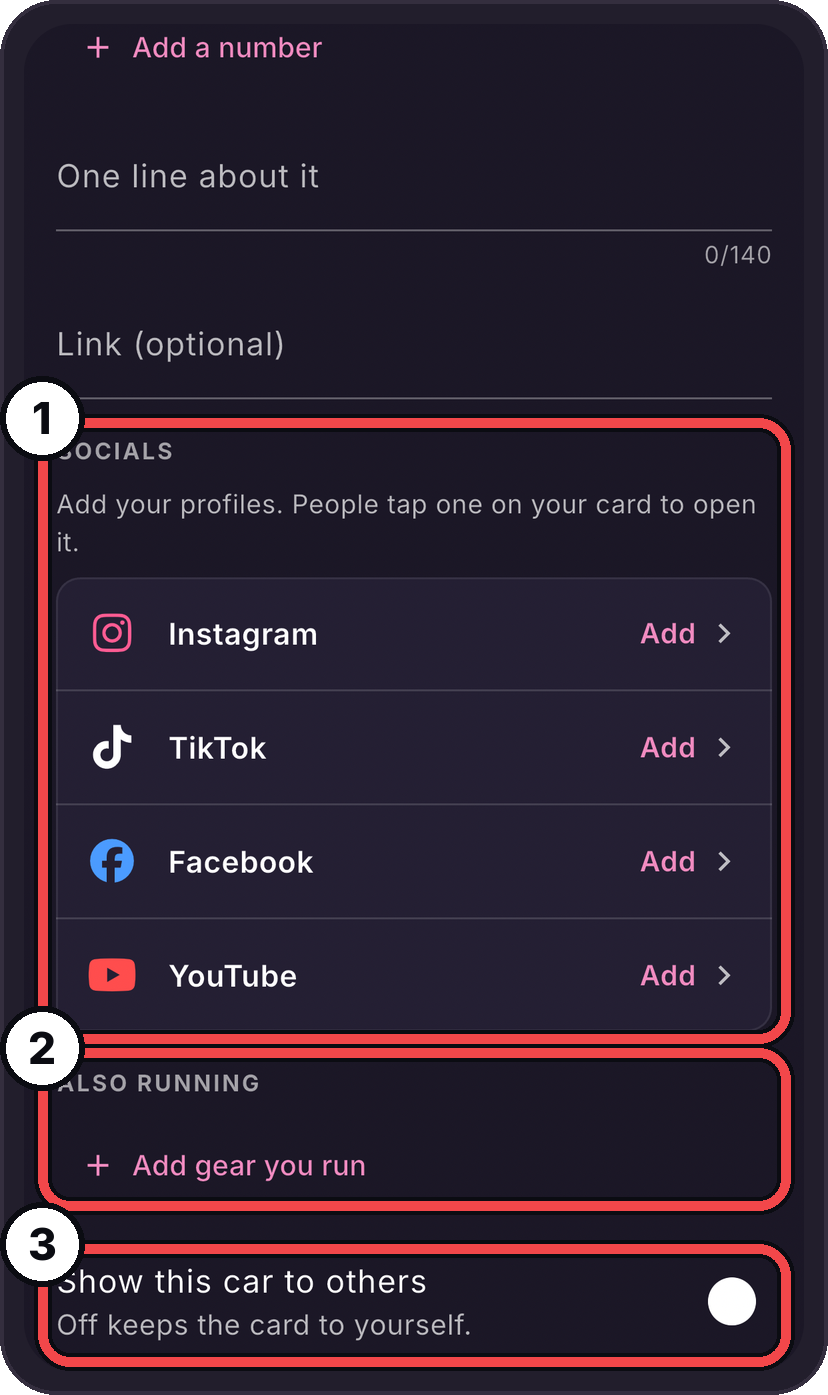
- Socials: Tap Add next to an app.
- Also running: Add the other gear in your car.
- Show this car to others: Turn it off to keep the card to yourself.
Add the gear you run
- Under Also running, tap Add gear you run.
- Fill in Qty, Brand, Model and Role. For example, 2, Sundown, SA-12, Subs.
- As you type a brand, the app offers names from its list. Tap one to pick it.
- Tap Add more gear for the next line. A card shows up to 8 lines.
A brand that is not on the list is kept as you typed it.
Your LF units are not typed here. They show under LF gear on this car, from LF units in this car.
Name the shop that built it
- Save the car first.
- Tap Built by.
- Search by the shop's name or city. Tap the shop. Or tap No shop.
Only LF Audio dealers are listed. Your card shows "Built by" the shop once the shop or LF Audio confirms it. Until then, the editor says Waiting for the shop to confirm.
Add your LF units
LF units in this car lists the LF units in this car, by the names Garage uses.
To add units:
- Tap Add LF units. A list shows the other units you paired with this phone. The ones you used last are at the top.
- Tap each unit to add. A unit the phone cannot name is under one line, like "2 units this phone cannot name". Tap it to see them.
- Tap Add 1 unit (or Add 2 units, and so on).
A unit can be in one car at a time. A unit in another car says "In (car) now. Adding moves it here."
To take a unit off this car, tap the minus circle next to it.
Your card shows the units under LF gear on this car, by model name.
Show your card on the web
Turn on a public page to share a card with anyone, even people without the app.
- Save the car, and leave Show this car to others on.
- In the card editor, turn on Public page.
- A QR code and a link show. Tap Copy link to share it.
- Tap Print for a show placard and stickers with the QR code. Print at 100%. Cut on the dashed lines.
The code stays the same when the card changes, so a printed placard keeps working. Turn Public page off and the page says the build is private.
New accounts wait a few days before a card can have a public page.
Change or delete a card
- Change it: go to Community, then tap your picture. Tap the car under Your builds, then tap the pencil at the top. Make your changes, then tap Save.
- See it as others do: tap the car under Your builds. Its card opens as others see it.
- Hide it: turn off Show this car to others. Only you can see it then.
- Delete it: open the car, then tap Delete this car. This deletes its build card and photos.
Look at someone's card
Tap a post or a car anywhere in Community to open its card. A card shows the owner, the photos, the big numbers, LF gear on this car, Also running, the shop that built it, reactions and its posts.
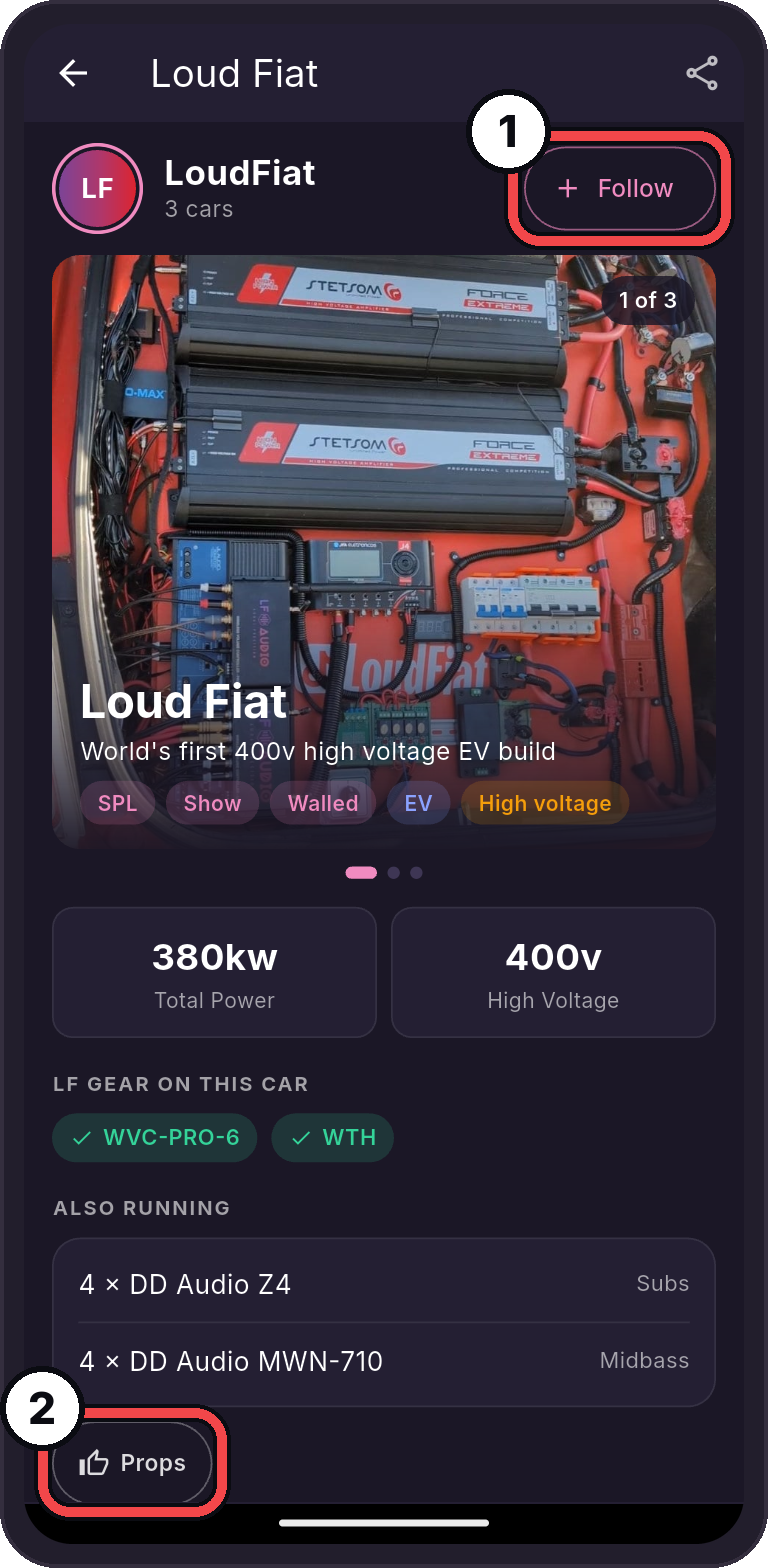
- Follow: See this car's posts under Following.
- Props: Tap to give props. Hold for Fire and Clean.
Tap Share at the top of the card to send its public page. Tap the owner's name to see all their cars and posts. See Watch, React and Follow.
If something does not work
| Message | What to do |
|---|---|
| "That link cannot be used. Use an https link to a build page, video or gallery." | Use a link that starts with https. |
| "You have the most cars an account can have (20)." | Delete a car you no longer need. |
| "That is the most photos for today. Try again tomorrow." | New accounts can add a few photos a day. Try again tomorrow. |
| "That photo is too large. Pick one under 8 MB." | Pick a smaller photo. |
| "That photo cannot be used." | The photo did not pass our check. Pick another one. |
| "Saved on this phone. It takes effect for others once this car is sent." | Your phone is offline. The change goes up when you are back online. |