
See what other LF owners built. React to their posts, and follow the cars and builders you like.
The Feed
- Go to Community. It opens on the Feed.
- Pick a chip:
- All: the newest posts and build cards from everyone.
- Following: only the cars and builders you follow.
- Videos: only videos.
- Photos: only photo posts.
Scroll down for more. Pull down at the top to refresh. When you come back after a while, the Feed loads again by itself. If you are scrolled down, tap New posts to jump to the top.
A post with several photos shows "1 of 3" on top. Swipe to see the next one. Tap a post to open the car's build card. A video opens full screen. See Watch a video.
You can look without signing in. To follow and react, sign in and join. See Join Community.
Watch a video
A video opens full screen, wherever you tap it: on the Feed, on a build card, on a profile, or from a notification or a link.
- Pause: Tap the video. Tap again to play.
- Skip: Drag the thin bar along the bottom.
- Sound: Tap the sound button at the top right. It turns the sound off or on for every video.
- Next video: Swipe up. Swipe down for the one before.
- Back: Tap the back arrow at the top left.
Only the video on the screen plays. It plays again from the start.
Over the bottom of the video:
- Tap the member's name to see their profile.
- Tap the car to open its build card.
- A long caption shows two lines and more. Tap it to read all of it. Tap again to fold it.
On the right side:
- Props: Tap to give props. Hold it for all three reactions. See React.
- Share: Send the video's link. See Share a post or a build.
- The three dots: Report and Block on someone else's video. Delete on your own.
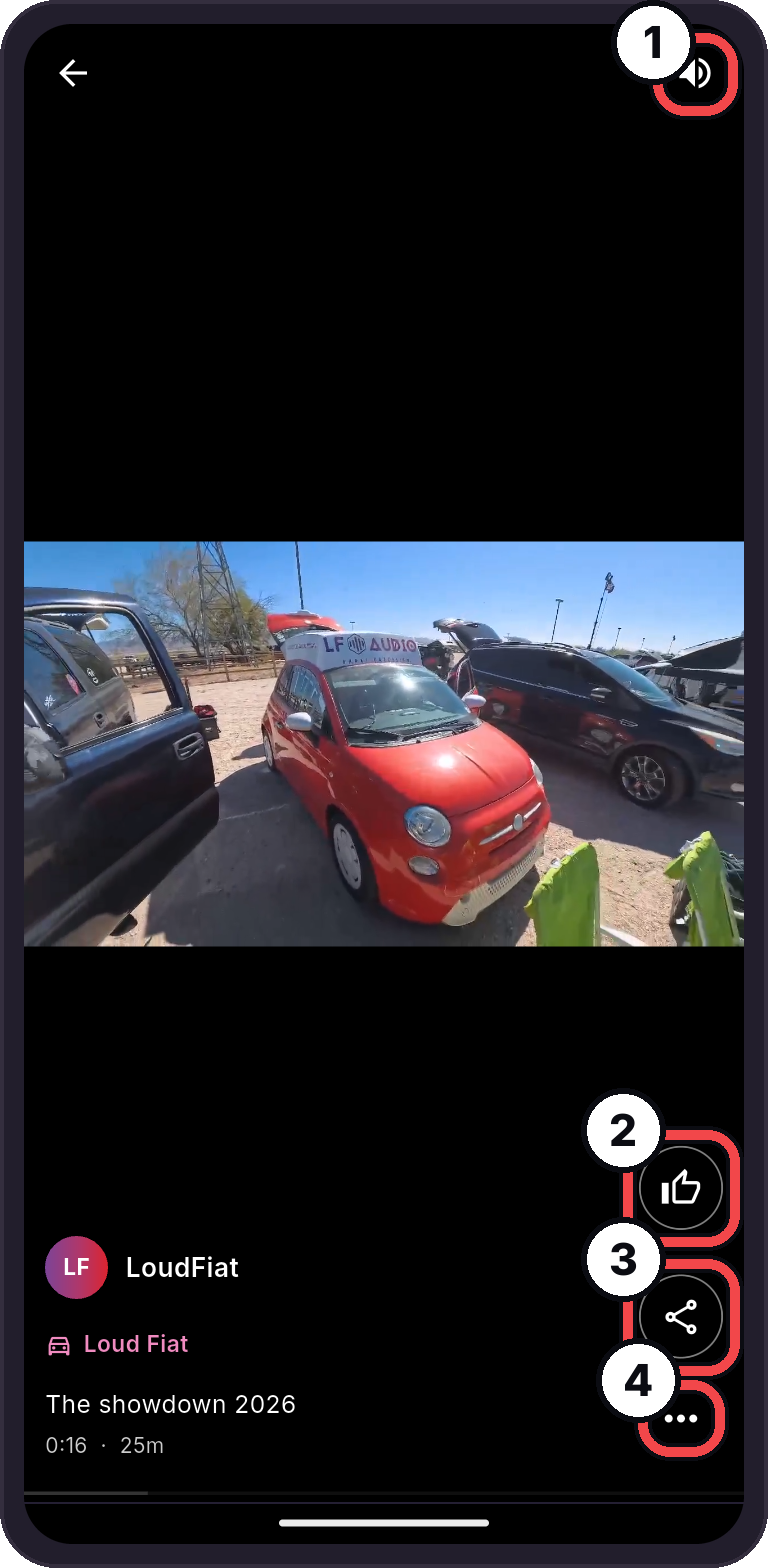
- Sound: Turns the sound off or on for every video.
- Props: Tap to give props. Hold it for all three.
- Share: Send the video's link.
- The three dots: Report, Block, or Delete on your own.
A run posted without video opens on its own page, with the car's name on top.
Verified run
Some videos say Verified run. The readings in that run came from LF units this member's app paired with. Over a verified run, the readings show as it plays: the voltage, the volume, and Clean or Clipping from a unit that detects clipping.
React
Every post and build card has one reaction button. There are three reactions:
| Reaction | Means |
|---|---|
| Props | Respect for the build. |
| Fire | It is loud, or it looks great. |
| Clean | A clean install. |
- Tap the button to give Props. Tap it again to take yours back.
- Hold the button to see all three, with how many people gave each. Tap one to give it, or to change yours.
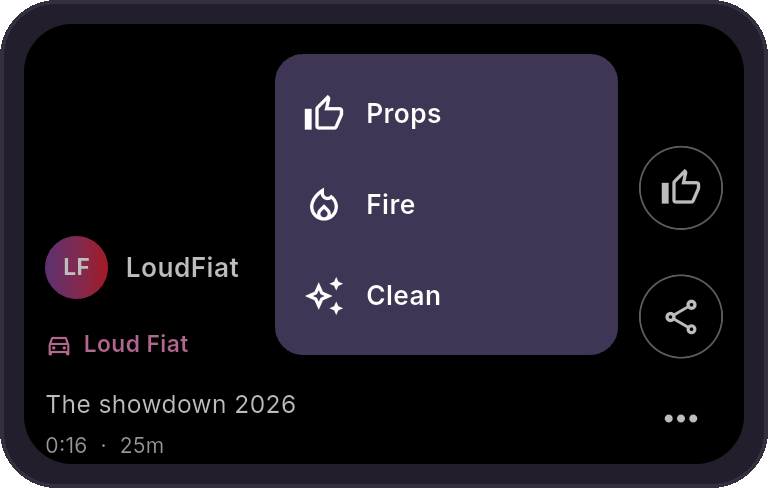
You give one reaction per post. The button shows yours, and how many people reacted in all. There are no scores or rankings. You cannot react to your own posts. Hold the button on your own post to see the counts.
Share a post or a build
Tap Share on a post or a video. Your phone's share sheet opens with the post's link. The link opens the post in the app, or on a web page for people without the app.
Tap Share on a build card to send the card's public page. On your own card with the public page off, the app asks "Share this build?" first. Tap Turn on and share. See Show your card on the web.
To share a profile, open it and tap Share profile.
Follow
- Open a build card or a member's profile.
- Tap Follow. It changes to Following.
Follow a car to see its posts. Follow a builder to see all their posts. Their posts show on the Feed under Following. Tap Following to stop.
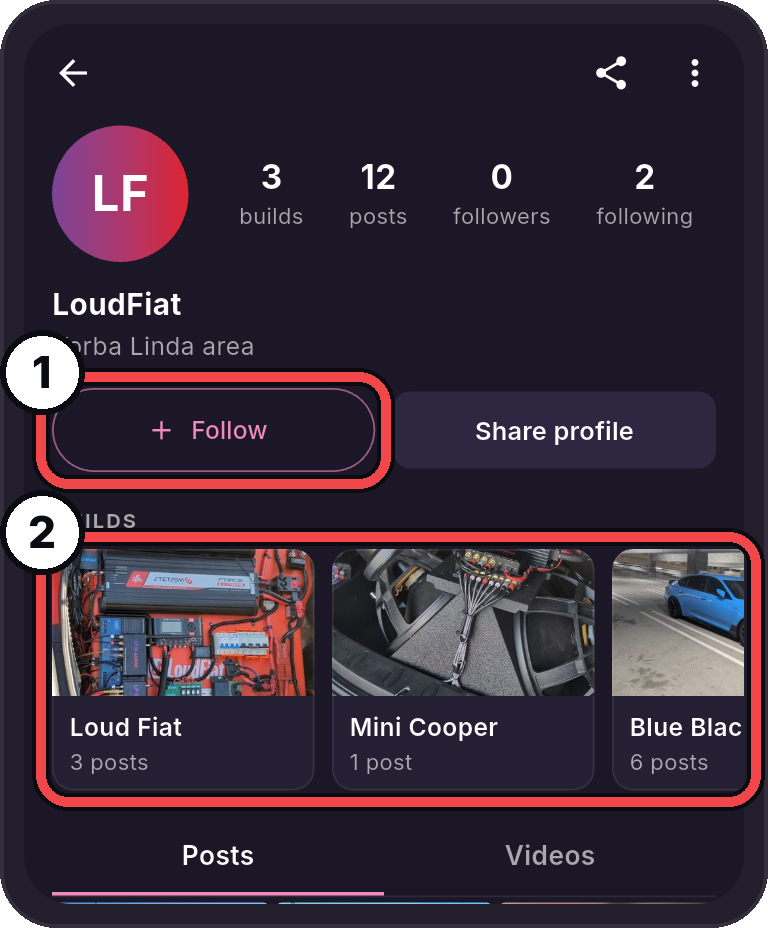
- Follow: See all of this builder's posts under Following.
- Builds: Tap a car to open its build card.
Get a notification for new posts
- Go to Community, then tap your picture at the top right.
- Tap the gear, for Community settings.
- Turn on People I follow post.
- If your phone asks, allow notifications for LF Audio.
It is off until you turn it on. Tap a notification to open the post.
If the app says "Notifications are off for LF Audio in your phone settings.", open your phone's settings and allow notifications for LF Audio.
If something does not work
| Message | What to do |
|---|---|
| "Sign in to follow builders." or "Sign in to react to builds." | Sign in, then join Community. See Join Community. |
| "You've done that a lot today. Try again tomorrow." | You followed or reacted many times today. Try again tomorrow. |
| "This build is no longer available." | The owner deleted or hid it. |
| "Couldn't reach Community. Check your connection and try again." | Check your internet connection. |