
Find meetups and car audio shows from LF Audio and its dealers. Say you are going, and check in when you get there.
Find a meetup
- Go to Community, then Meetups.
- Your own events show on top, under Your events.
- Upcoming meetups and shows come next, soonest first.
- Tap All countries to see only one country.
You can look without signing in. Tap a meetup or show to open its page. It shows the host, the place, each day, how many are going, and the event's website.
Times show in the event's own time, where it takes place.
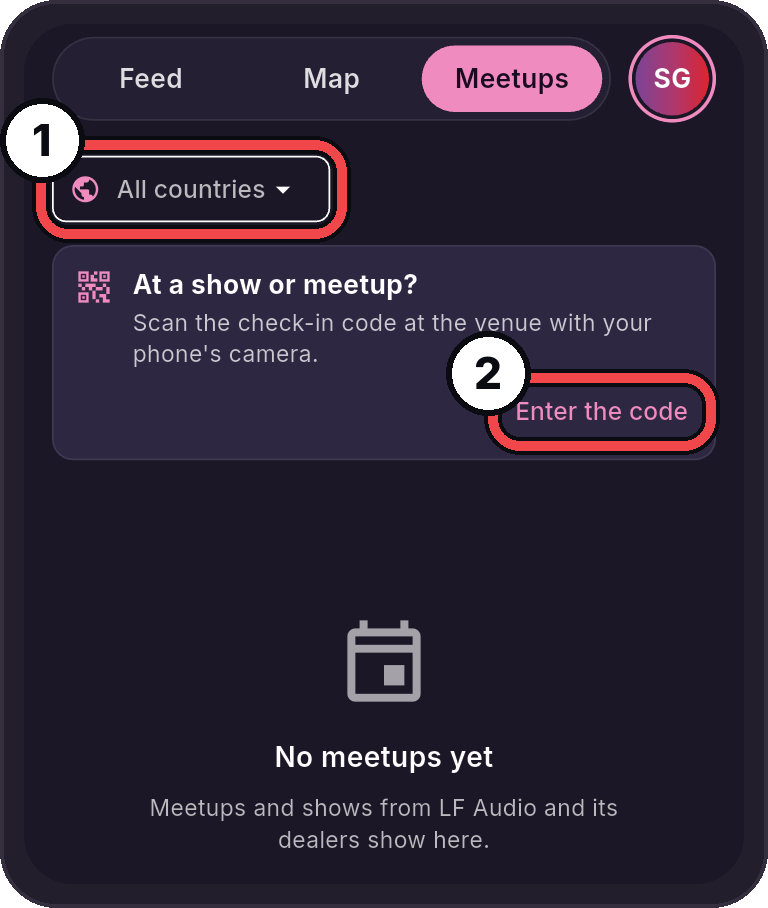
- All countries: Pick a country to see only its events.
- Enter the code: Check in with the code from the venue.
Say you are going
- Open the event.
- Tap I'm going. The first time, the app asks you to sign in and join Community. See Join Community.
It changes to You're going, and the event shows under Your events. To stop, tap You're going, then Not going.
Check in at the event
At the venue, look for the check-in QR code.
- Scan the code with your phone's camera. The LF Audio app opens. Or go to Meetups, tap Enter the code, and type the letters under the QR code.
- Pick one:
- Check in and show me in who's here: your username and build cards show on the event's page.
- Check in without showing: you are checked in, but not shown.
A code works only on its event day, from 2 hours before it starts until it ends. Your phone sends only the code and your choice. It never sends where you are.
Who's here
Once a day starts, the event's page shows Who's here. Tap a name to see the member, or a car to open its build card. Anyone in Community can see this list.
To come off the list, open the event and tap Leave who's here. You leave every day of that event.
If something does not work
| Message | What to do |
|---|---|
| "That check-in code isn't right. Scan the code at the venue again." | Scan the code again, or check the letters. |
| "This code checks in only on its event day, from 2 hours before it starts." | Try again on the event day. |
| "This event is over." | The event has ended. You can no longer check in. |
| "Finish joining Community first: pick a username and confirm you are 18 or older." | Join Community, then try again. See Join Community. |
| "Meetups open soon" | Meetups are not open on your account yet. |